Setting Up Lead Forms in the Header & Main Banner
Written By inblog Team
Last updated About 1 year ago
To configure lead capture forms in your blog’s header or banner: Go to Forms → Blog header & banner → Edit from the left sidebar.
1. Configure the Form
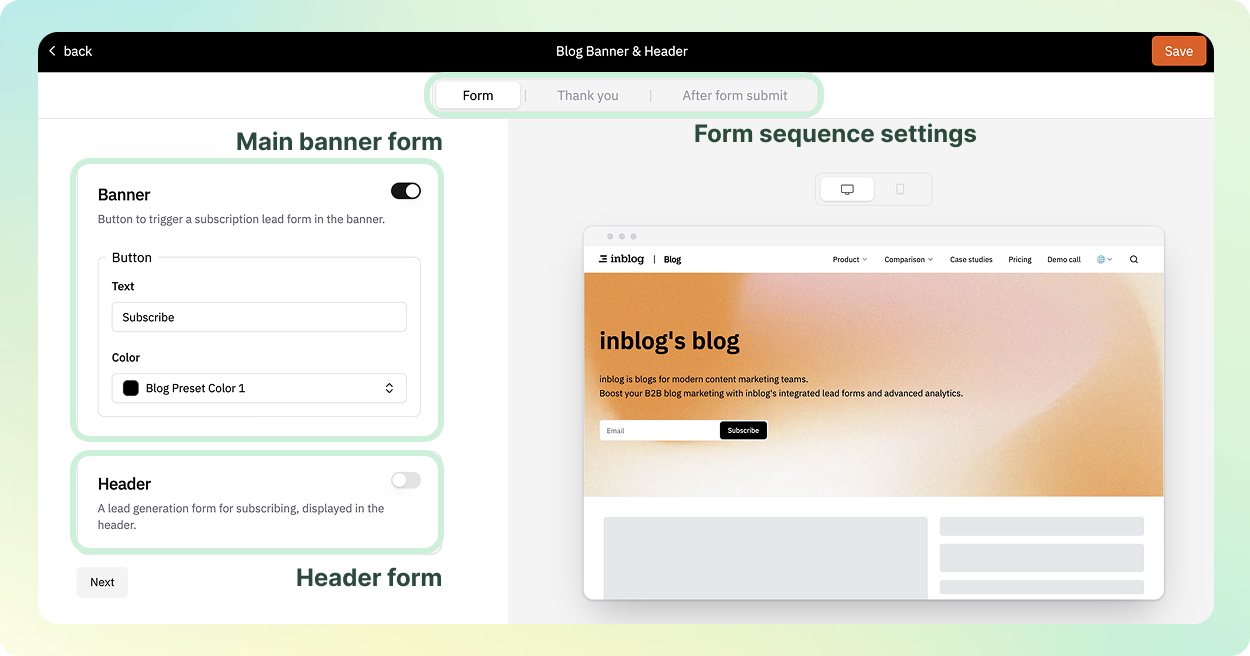
Main Banner Form
Displayed on the main page of your blog.
You can customize the button text and button color.
Header Form
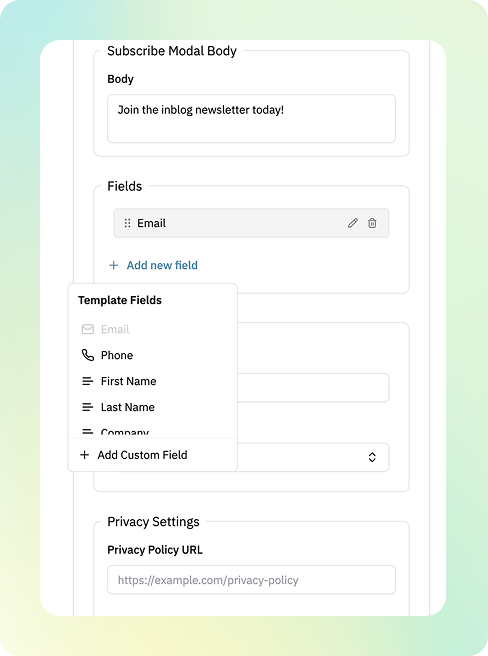
Displayed when a user clicks the call-to-action in the blog header.
Body: Text shown when the form is triggered
Fields: Define the input fields you want to collect from visitors (e.g., email, phone number, name)
Privacy Policy URL: Set a link to your data privacy policy
2. Success Message After Submission
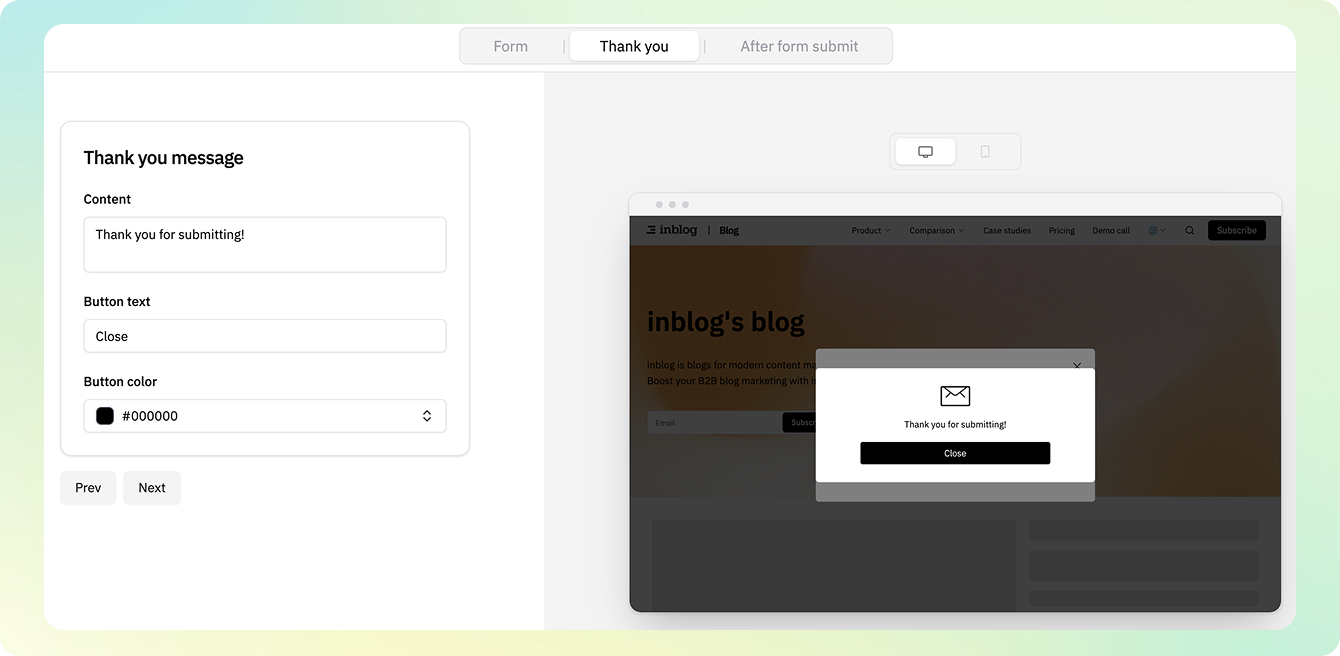
Customize the message displayed to users after they submit the form. This confirmation helps create a smooth experience and sets expectations.
3. Auto-Reply Email to Respondents
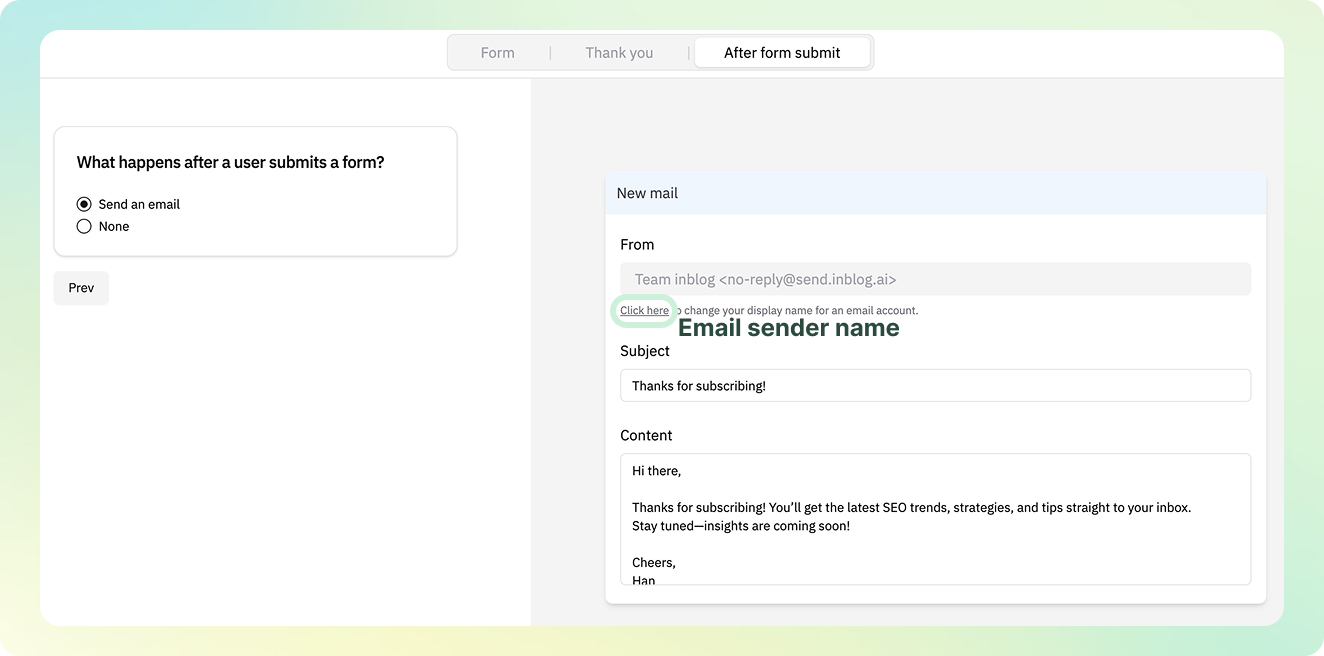
Send a follow-up email to users after they submit the form.
Toggle email notifications on/off from the left panel
Set the sender name, email subject, and email body
Use this feature to thank users, confirm receipt, or share follow-up resources