Understanding the Editor’s Right Toolbar
Written By inblog Team
Last updated About 1 year ago
The right-hand toolbar in the inblog editor provides essential tools to optimize, manage, and publish your content.
Lead Form
Under Lead Form, you can select a pre-configured lead capture form to be displayed on the post.
📌 For more details, see: How to Capture Leads Using inblog Forms
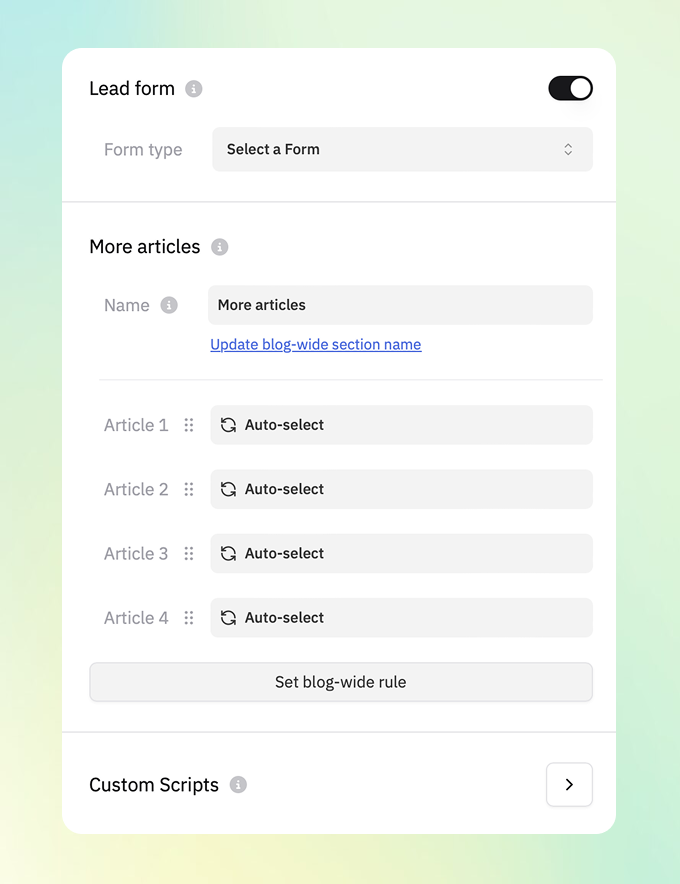
More Articles
Customize how related content is shown at the bottom of your post.
Name: Define the label for this section (e.g., “Recommended Articles”, “Related Posts”).
Articles: Manually select posts to appear.
The default behavior can be configured in your blog-wide settings.
Custom Scripts
Use Custom Scripts to add structured data in the form of schema markup. This helps search engines better understand your content for improved visibility in search results.
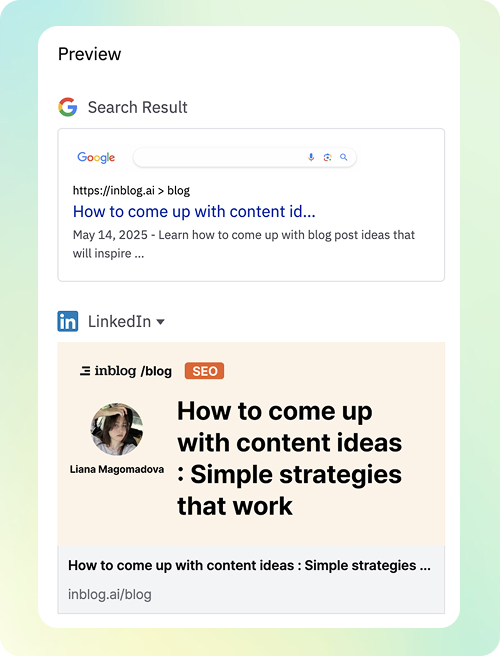
Preview
Preview how your post will appear in:
Google Search Results
Social platforms such as Twitter, Slack, LinkedIn, and Facebook
Delete Post
Click Delete to permanently remove the post.
Publish Your Post
Once all content and settings are complete, click the Publish button in the top-right corner to make the post live.
Before publishing, a final review prompt will appear to help you double-check key items.
✅ inblog also supports Zapier integration for automating publishing workflows.