Creating Content
Written By inblog Team
Last updated 11 months ago
inblog offers two content creation methods. You can select your preferred editor from the Editor type menu in the right sidebar:
inblog Editor
Notion-based Editor
Writing with the inblog Editor
To use the built-in editor, ensure that Editor type is set to inblog Editor (this is the default setting). You can write content using familiar text editing tools, and use the / command to insert structured blocks like bullet points, tables, or embeds.
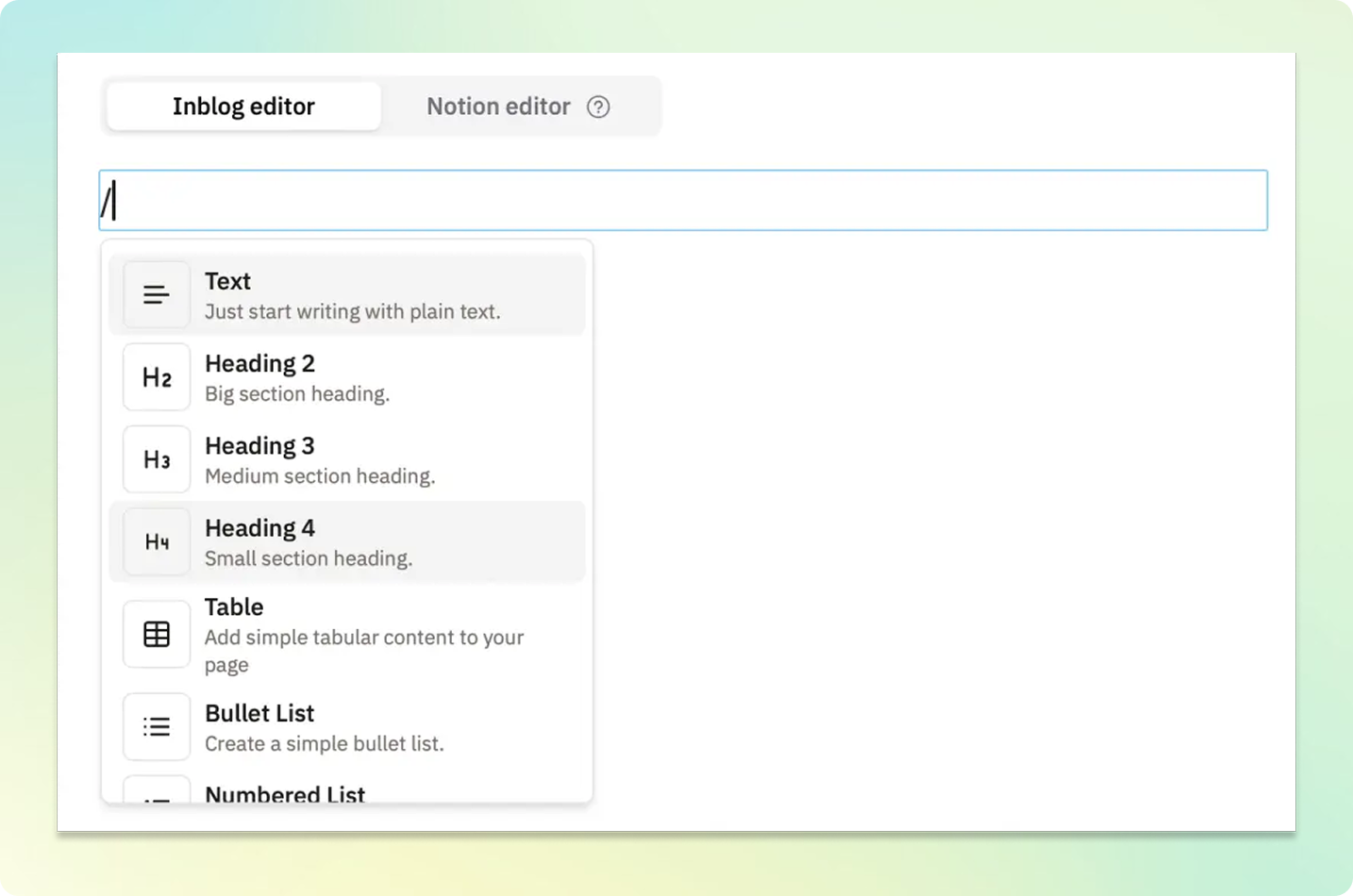
Supported blocks include:
Headings (H2, H3, H4)
Used for content structure and reflected in the table of contents.
Table
Bullet list
Numbered list
Quote block
Code snippet
Divider
Callout
Emoji
Bookmark
Image
Max image size: 10MB
HTML embed
Form embed
Supports: HubSpot, Tally, Google Forms, Typeform
Writing with the Notion Editor
To use Notion as your editor, switch the Editor type to Notion.
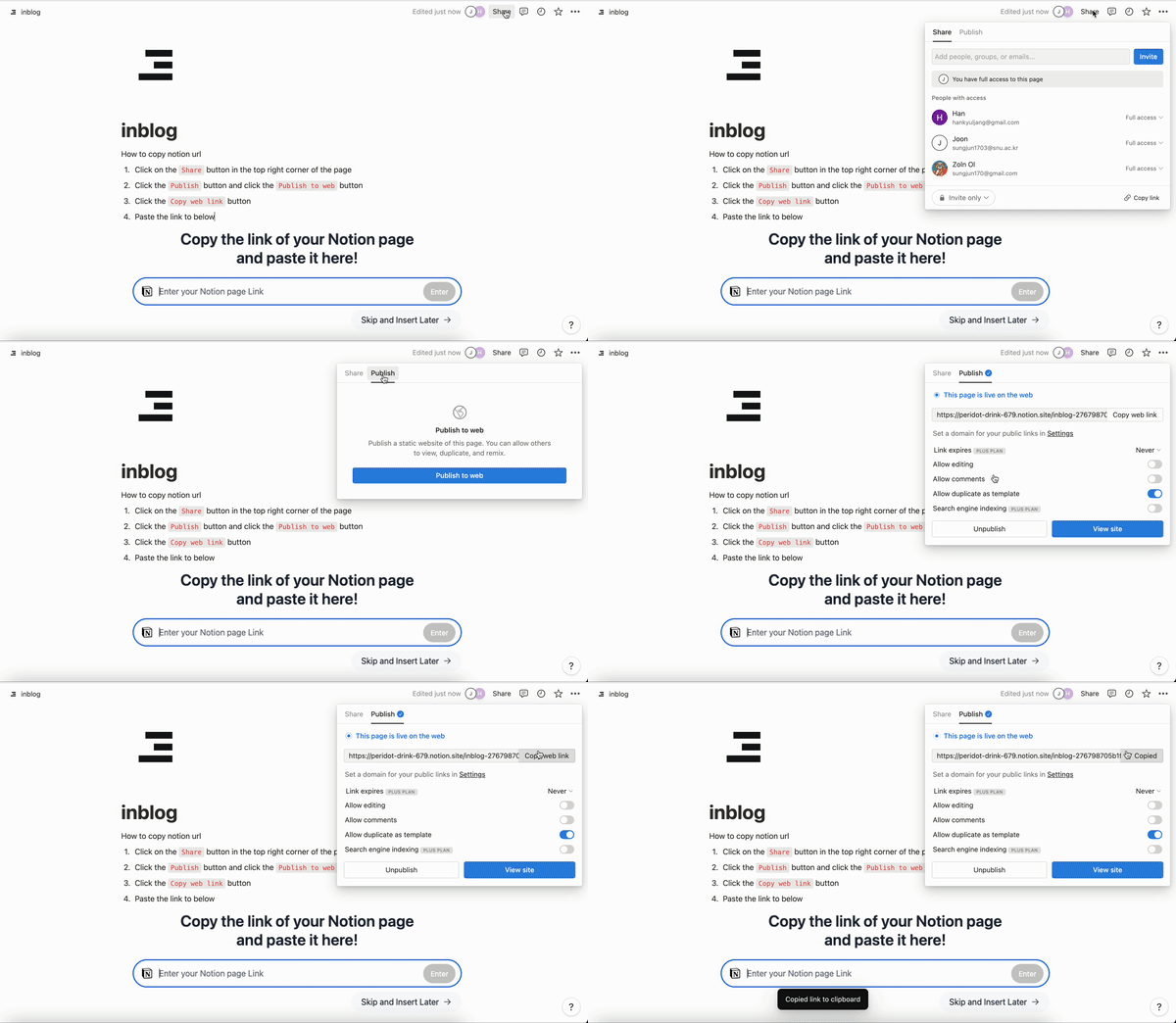
In Notion, go to the top-right menu:
Share → Publish → Publish to Web → Copy Web Link
Paste the copied link into the Notion Page URL field in inblog.
❗Note:
Navigation to subpages within Notion is not supported
Image captions are used as alt text
Notion’s H1 is rendered as H2 in inblog
Notion’s H2 is rendered as H3
Setting a Call to Action (CTA)
You can add a Call to Action at the bottom of your post.
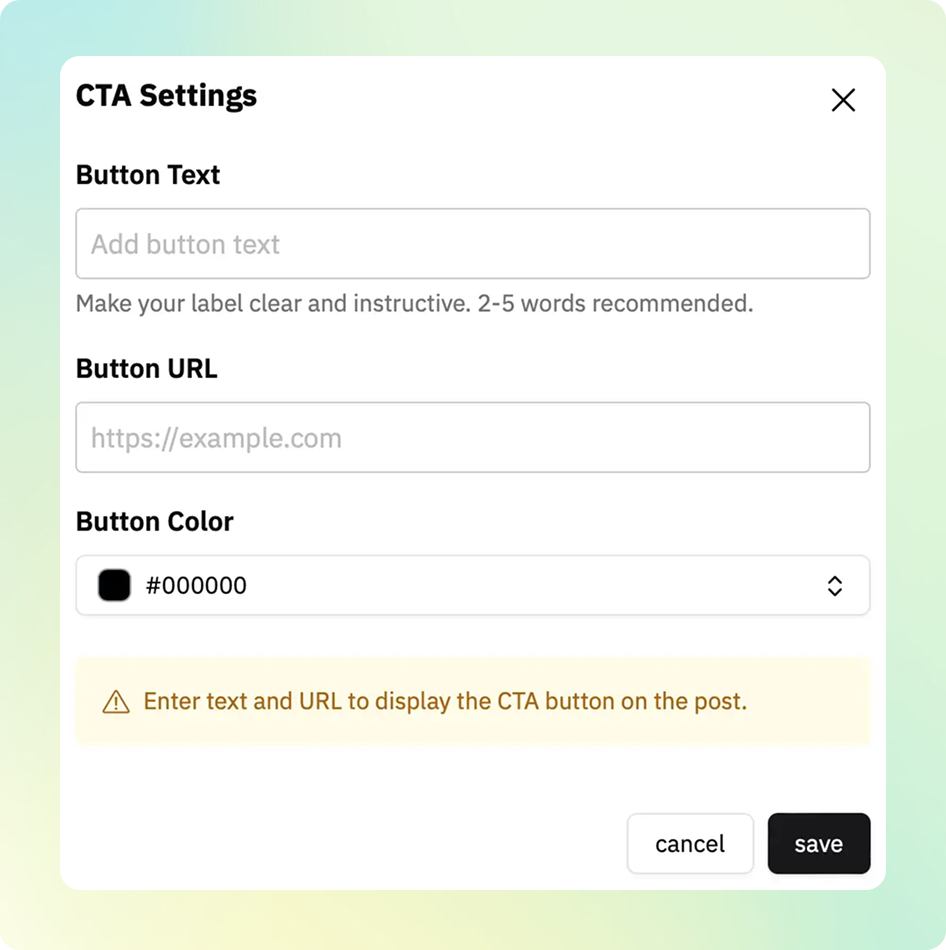
Click Add CTA button to configure:
Button Text: Short phrase (recommended ≤ 30 English characters)
Button URL: Landing page to redirect the user
Button Color: Customize your CTA color
If you don’t configure a CTA, it won’t be shown by default.
Frequently Used Blocks
You can save frequently used content blocks as templates in the editor.
This allows you to quickly reuse them whenever needed.
To save a block as a template, click “Save as template” from the editor's bubble menu.
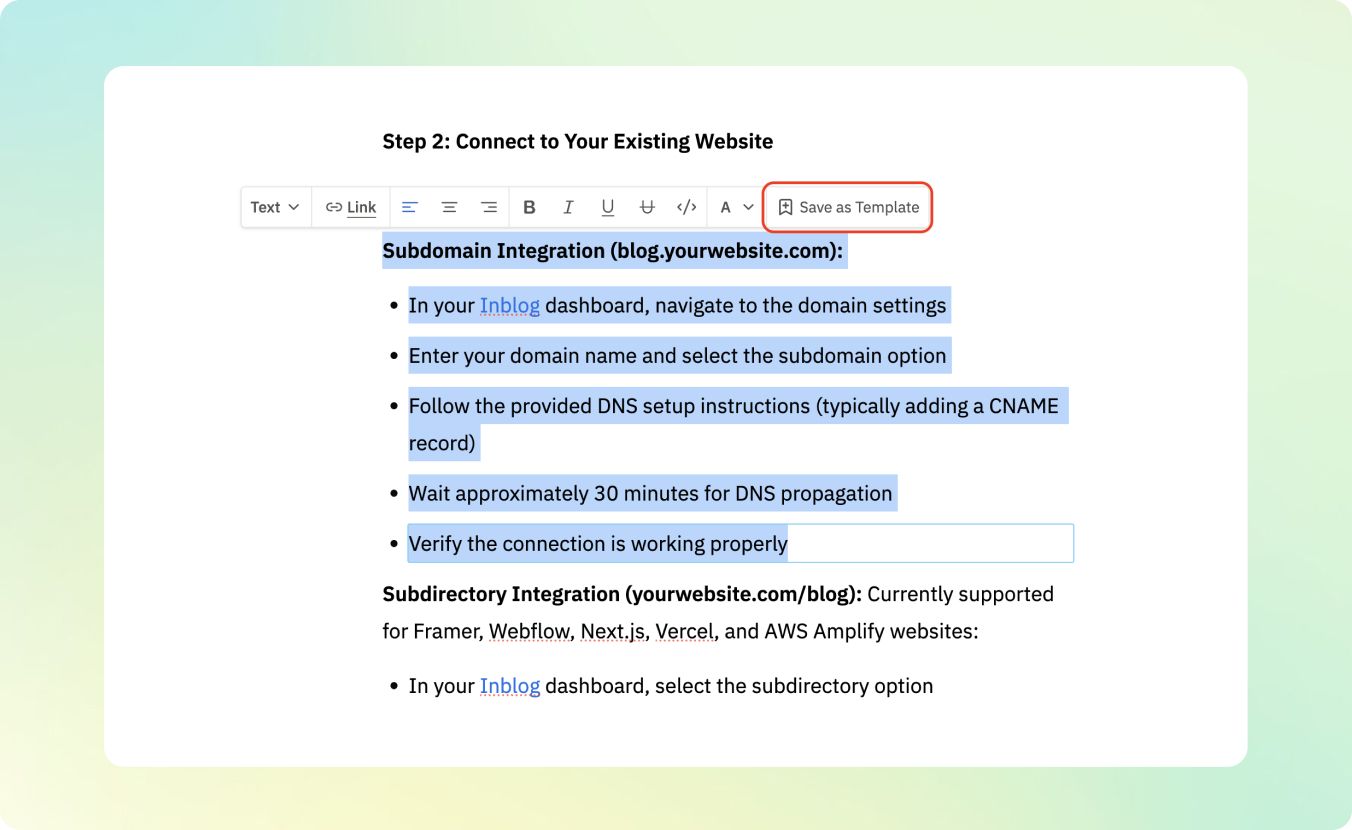
Give your template a name and optional description, then click save.
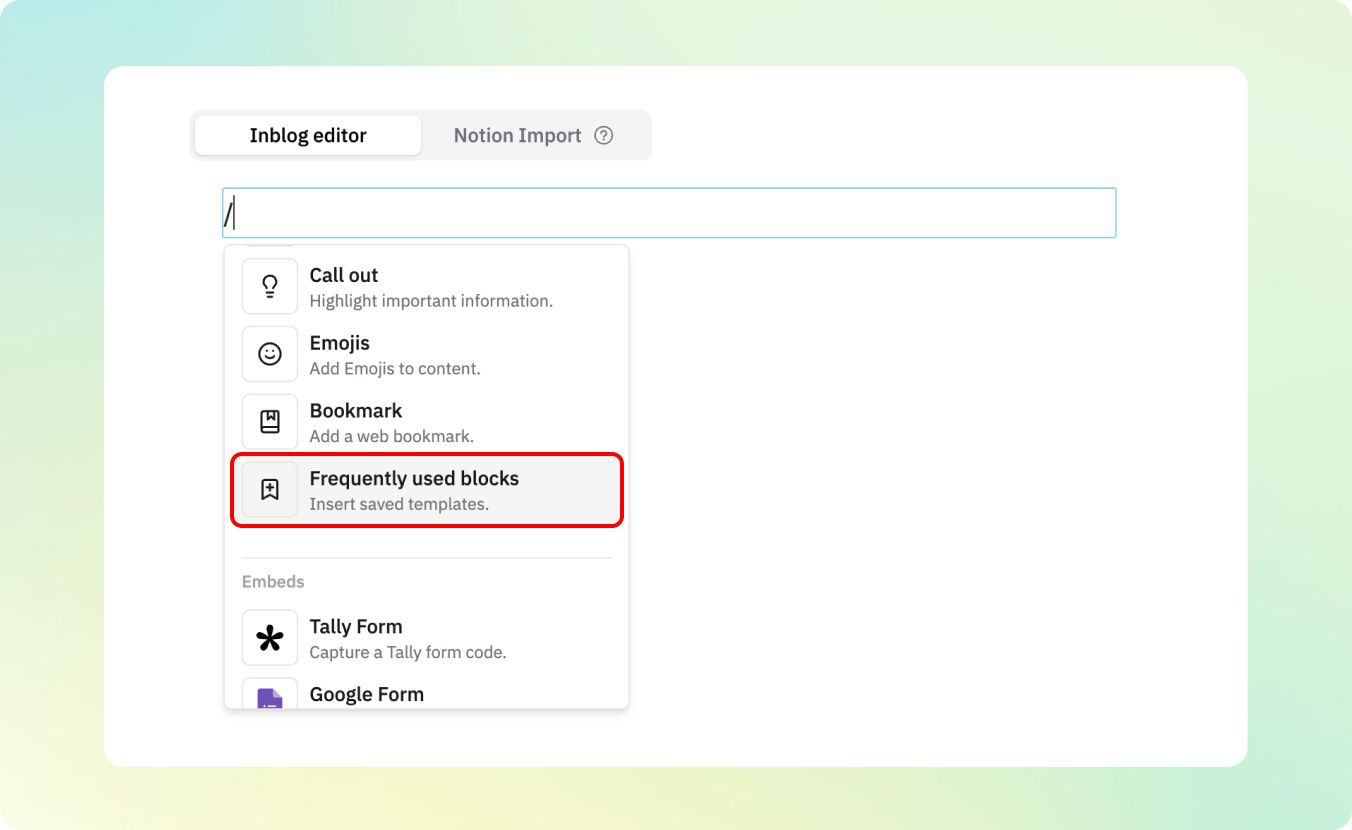
To insert a saved template, type
/in the editor and select the Frequently used blocks from the menu.