Migrating Your Blog to inblog
Written By inblog Team
Last updated About 1 year ago
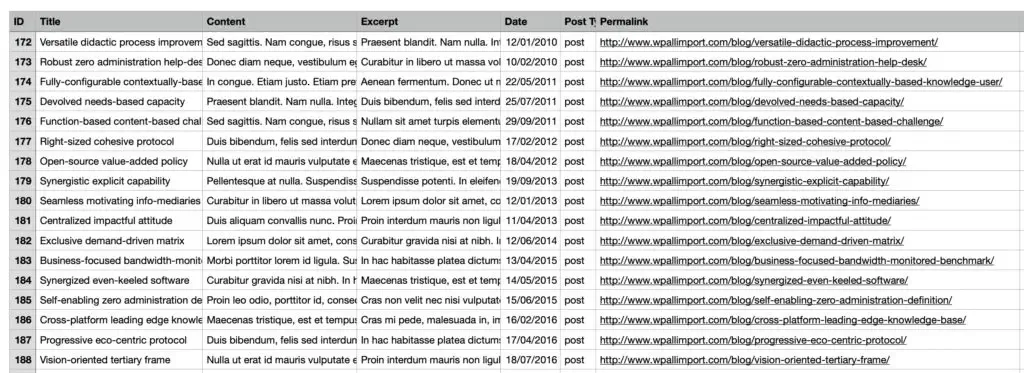
inblog supports seamless blog migration from various platforms including WordPress, Ghost, and Medium. Even if your platform is not listed, we can assist with the migration as long as you follow our provided migration template.
✅ Migration service is available to paying customers only.
⏱️ Turnaround: Typically within 1–2 business days
📥 Migration Template
To begin your migration, please download and fill out the migration template and email it to hello@inblog.ai.
WordPress → inblog
You will need to export your post HTML files using the Simply Static plugin:
Go to WordPress Admin → Plugins → Install Simply Static
Navigate to Simply Static → Settings and configure:
Delivery Method: “Download ZIP” or “Save to local directory”
URL Type: Choose Relative URLs (e.g. ./about.html) for internal link support
Go to Simply Static → Generate, click Generate Static Files
Download the ZIP file and send it to us
Ghost → inblog
Go to Ghost Admin → Settings → Advanced → Import/Export
Click Export to download a .json file containing your posts and settings
Email the file to us for migration
Medium → inblog
Go to your Medium account settings
Select Download your information
Receive a ZIP file via email
Extract the file and locate .html files inside the posts/ folder
Provide the list of URLs and HTML files you want migrated
Other Platforms (Wix, Webflow, custom CMS)
If you use a platform not listed above, we can still support your migration using the migration template format.
✅ Post-Migration Checklist
1. Check Content Display
Ensure that buttons, tables, and images display properly within inblog’s format.
2. Redirect Old URLs (301 Redirects)
If your blog domain or URL structure has changed (e.g. from blog.example.com to example.com/blog), set up 301 redirects to preserve SEO performance
⚠️ Redirects must be configured on your own domain server.
inblog cannot manage redirects on your behalf.
Example:
From /category/post-name → /post-name. Make sure redirects are in place if your old blog used subdirectories or different slugs.
3. Backup Your Old Blog
Before deleting your old blog, we recommend backing up all original content and image files locally.
Frequently Asked Questions (FAQ)
Will my blog formatting be preserved?
Content will be styled according to inblog’s design system and blog templates. Tables, buttons, and other elements will be adapted for consistency.
How long does migration take?
Usually 1–2 business days, up to 5 days depending on complexity.
Do you configure redirects for me?
No, 301 redirects must be set up by your team on your server or domain provider.
Will changing blog URLs affect SEO?
Temporarily, yes. Rankings and traffic may drop briefly as search engines re-index your pages. 301 redirects help preserve SEO value and minimize losses.
Do you offer post-migration QA or reviews?
No. Clients are responsible for reviewing and confirming migrated content.
What is inblog’s default URL slug structure?
Posts are published under: /[post-slug]
If your old structure was /[category]/[post-slug], you’ll need to set up redirects from the old format to preserve traffic.
What about internal links within posts?
If your old blog used internal links (e.g. pointing to /old-blog/post-name), you must either:
Set up domain-level redirects from old to new blog URLs
Or provide updated internal URLs in the migration files you send us